Upscale video to a practical target
Choose the target according to the final display, export, or editing requirement. A defined output size makes cost and quality expectations clearer than a generic enhancement switch with an unknown resolution.
AI video enhancement
Use this AI video upscaler online to increase video resolution for a larger screen, crop, or export. Upload a video or import a compatible result, choose the required output size, and inspect the enhanced result.
Before and after
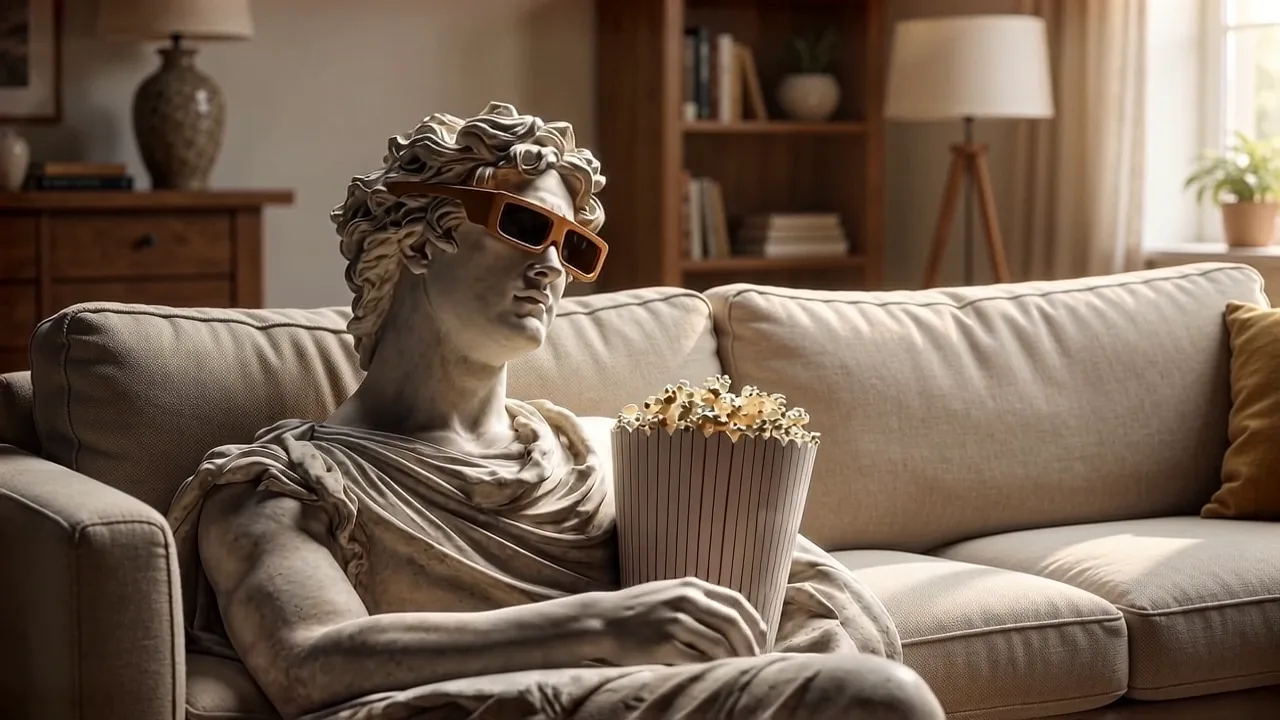
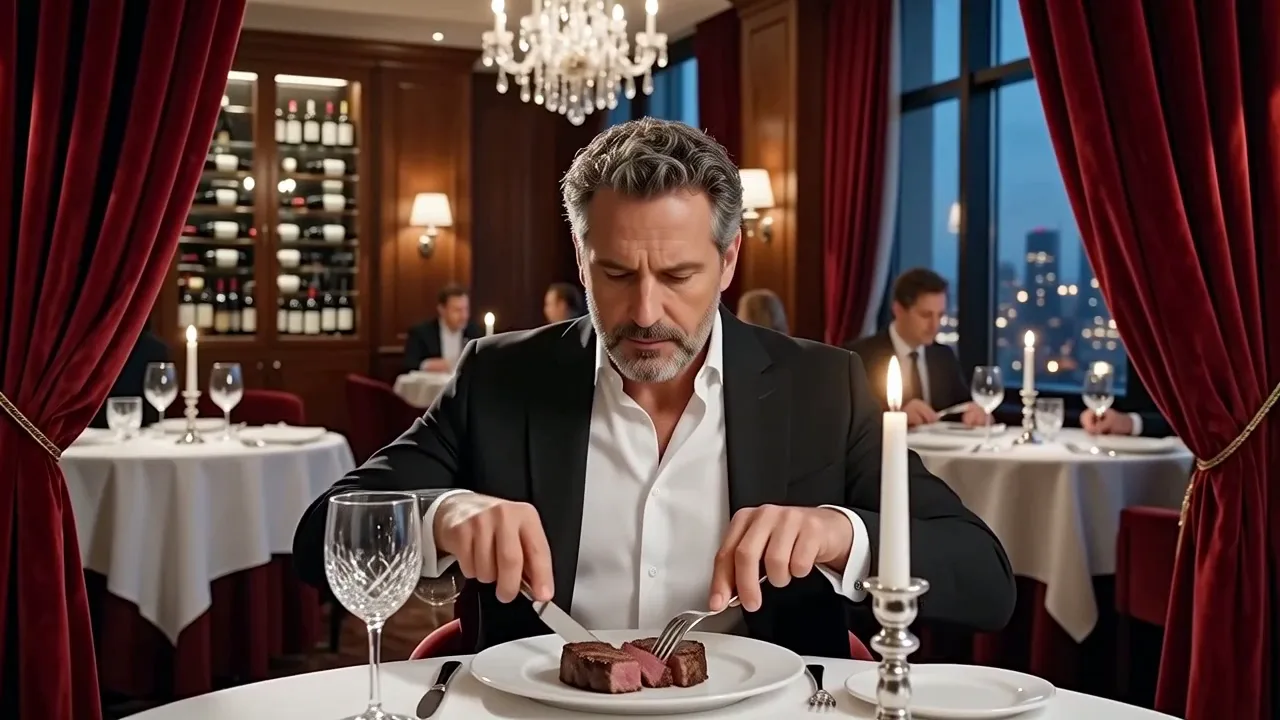
This paired example shows a spatial resolution change. The enhanced version is rendered at a larger target size and processed to improve perceived edges and texture while keeping the clip timing and frame rate separate from the upscaling operation.
Original
Upscaled
Compare fine edges, surface texture, and compressed areas at the same moment rather than judging only from a smaller player window.
Core capabilities
The AI video upscaler focuses on resolution and perceived detail. This AI video enhancer increases output dimensions and reconstructs visible texture while leaving editing, continuation, and frame-rate changes to their dedicated tools.
Choose the target according to the final display, export, or editing requirement. A defined output size makes cost and quality expectations clearer than a generic enhancement switch with an unknown resolution.
AI reconstruction can sharpen contours, surfaces, and small patterns that look soft after conventional enlargement. It can enhance low-resolution video with AI, but the result still depends on reliable detail and compression information in the source.
The video enhancer can make blockiness, ringing, and soft scaling less noticeable as it creates a larger output. Like any AI video upscaler, it cannot remove severe compression, burned highlights, or heavy motion blur that is part of the source signal.
Upscaling changes spatial resolution, not the narrative length or intended FPS. Use frame interpolation separately if you also need smoother motion, so each result can be evaluated against one clear transformation.
How it works
Select a source, choose the resolution the next workflow actually needs, and inspect the AI video enhancement result at a meaningful viewing size.
Upload an MP4 or MOV file, or import an eligible completed result from My Creations. Review the trusted duration and source resolution before choosing a larger output.
Set the target resolution and review the estimated credit cost. The online AI video upscaler calculates the request from the verified duration and selected size rather than guessing from a client-only file label.
The result center receives the task and manages processing, refresh recovery, playback, and download. Inspect edges, textures, and upscaling artifacts before using the larger file downstream.
Use cases and best results
The AI video upscaler is a delivery and restoration step. This video quality enhancer helps when the source is usable but too small or soft for the intended screen, crop, or export.
Increase video resolution before placing older or smaller footage into a 1080p, 2K, or 4K edit. A closer match can reduce obvious softness when the clip appears beside newer high-resolution material.
Import a compatible result when its motion and content work but the resolution is too low for final delivery. The original generation stays available in your history for later experiments.
A higher-resolution intermediate can provide more pixels for a later crop, zoom, or vertical reframing workflow. It does not invent guaranteed authentic detail, so inspect faces, text, and product features carefully.
Use the online AI video upscaler to reduce the visual impact of soft scaling and some compression artifacts in older clips. Sources with stable exposure and recognizable detail generally offer more useful reconstruction cues.
Choose 4K only when the display, crop, or production pipeline benefits from it. A smaller AI video enhancement target may process more economically and still match the final layout without unnecessary file size.
Pause both versions at the same moment and compare hair, fabric, product edges, foliage, and compression blocks. A larger file alone does not prove that useful detail has improved.
Heavy blur, clipped highlights, unreadable text, and severe blocking cannot be reliably restored to factual detail. Treat enhancement as reconstruction, then verify sensitive identity or product information.
Use the upscaler for spatial size and frame interpolation for motion cadence. Keeping those operations distinct makes it easier to identify artifacts and choose whether the second transformation is necessary.
Related AI video tools
After using the video enhancer, open prompt-based editing for a visual revision, continue the final frame, or generate intermediate frames when motion cadence needs improvement.
Upscaling pricing
The workspace calculates the quote from the verified clip duration and selected target resolution. Review the required credits before starting the upscale.
Frequently asked questions
An AI video upscaler increases a clip’s output dimensions and uses learned reconstruction to improve perceived detail during enlargement. It focuses on spatial resolution. It does not automatically extend the duration, edit scene content, or increase the frame rate.
Yes, 4K is one of the available targets, alongside 720p, 1080p, and 2K. Upload or import a supported video, select 4K in the AI video upscaler, and review the calculated credits. Choose the target that matches your actual delivery and inspect the output for source-dependent artifacts.
The model can reconstruct plausible edges and textures, but it cannot guarantee recovery of information that was never visible. Blurred faces, unreadable text, clipping, or severe compression may remain inaccurate. Verify important identity, text, and product details before publishing.
No. This operation is designed to change spatial resolution while preserving the clip’s timing. If you also want to increase FPS, complete the upscale first and then use AI frame interpolation as a separate, reviewable step.
Sources with recognizable edges, stable exposure, moderate compression, and limited motion blur provide stronger reconstruction cues. The workspace accepts MP4 or MOV files up to 50 MB and supported clips up to 60 seconds, subject to server verification.
After submission, the result center shows the processing state and restores it after refresh. When complete, it provides playback and download. Inspect the enhanced version at a useful display size and check important edges, faces, text, and textures.
Use the AI video upscaler online to choose the output size your workflow needs and inspect reconstructed detail before the next production step.