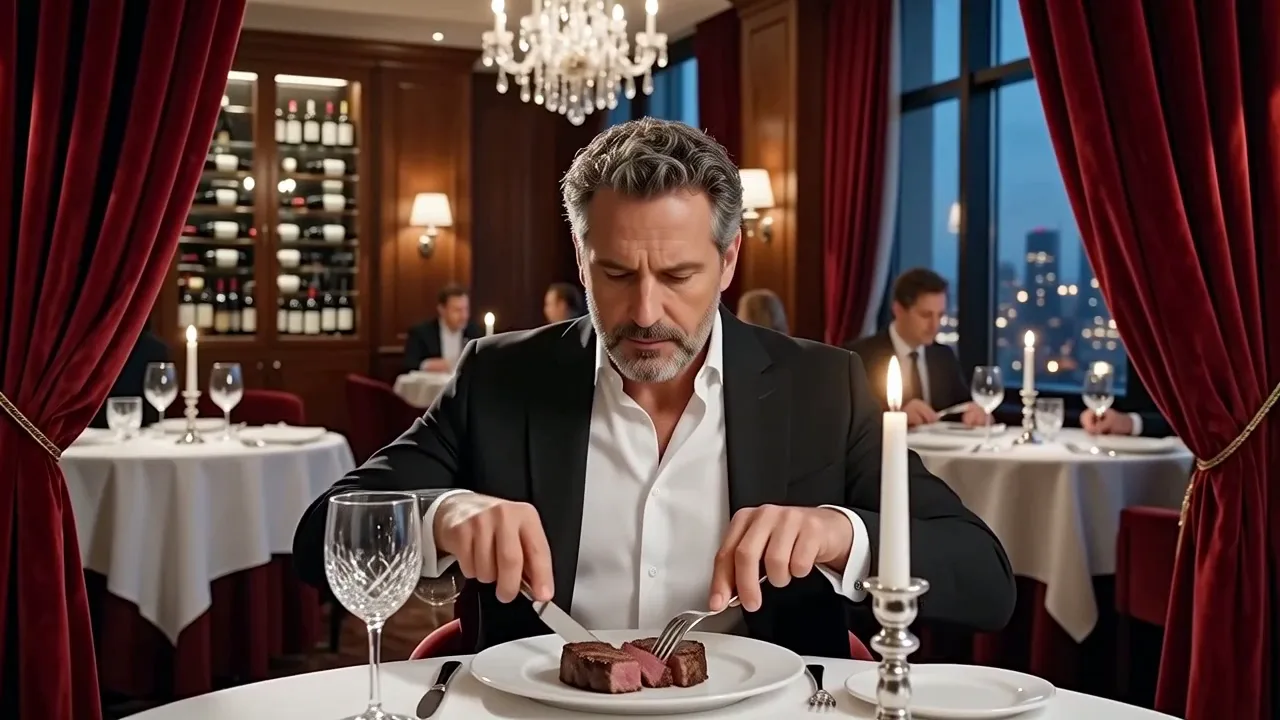
Prompt-based edits for existing footage

AI Video Editor Online for Prompt-Based Video Editing

Use this online AI video editor to edit existing footage with a text prompt instead of rebuilding the shot. Upload a short clip, describe one visual change—such as replacing an object, changing the background, or restyling the scene—and review the finished version in My Creations.

Seedance 2.0 Video Edit

Before and after

Compare a prompt-based edit with its source

See how AI video editing changes one selected visual detail while the source clip guides timing, composition, and movement. Inspect the new background, lighting direction, weather treatment, object, or visual style before continuing.

Original

Edited

The edited version follows one specific instruction while retaining the recognizable subject and camera path from the original clip.

Core capabilities

What this AI video editor can change

This AI video editing tool handles targeted visual revisions rather than timeline cutting or audio mixing. The original clip provides context, while your instruction defines what should change and what must remain recognizable.

Edit videos with text prompts

Write the intended result as a direct instruction, such as changing the season, replacing a sign, or giving the scene a cinematic evening grade. The AI video editor uses the source as visual context, so you do not need to rebuild the shot frame by frame.
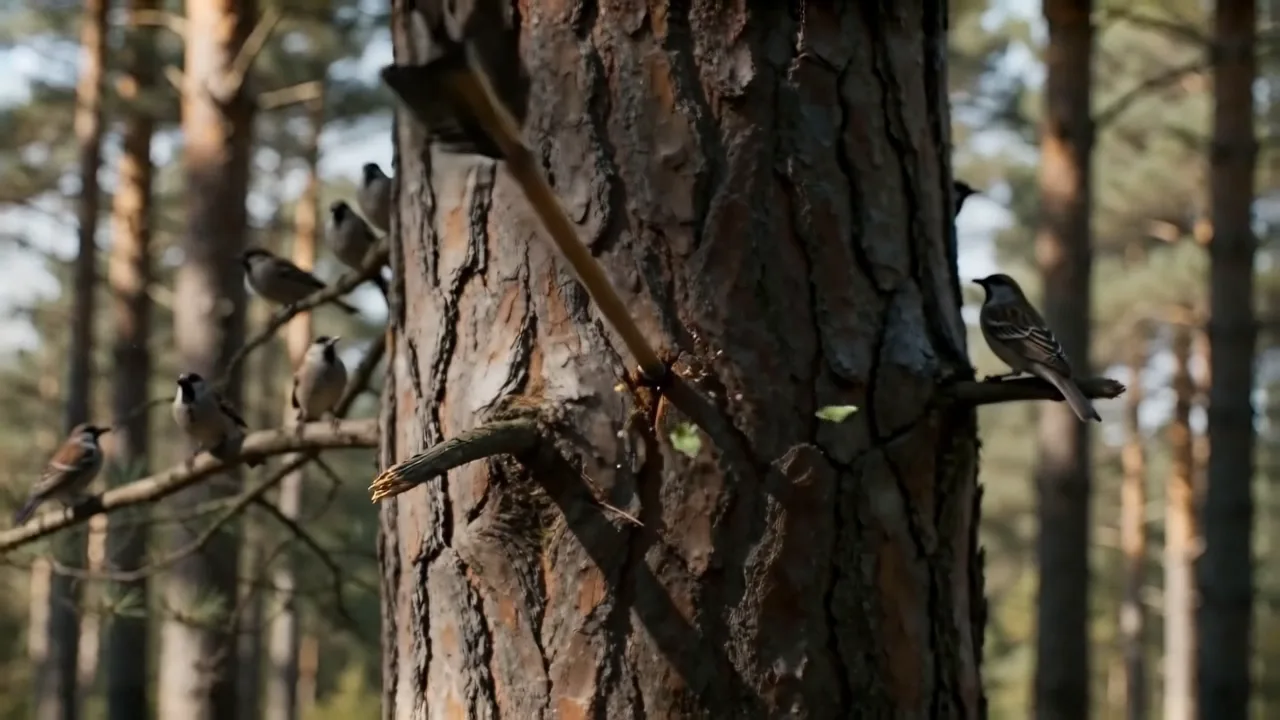
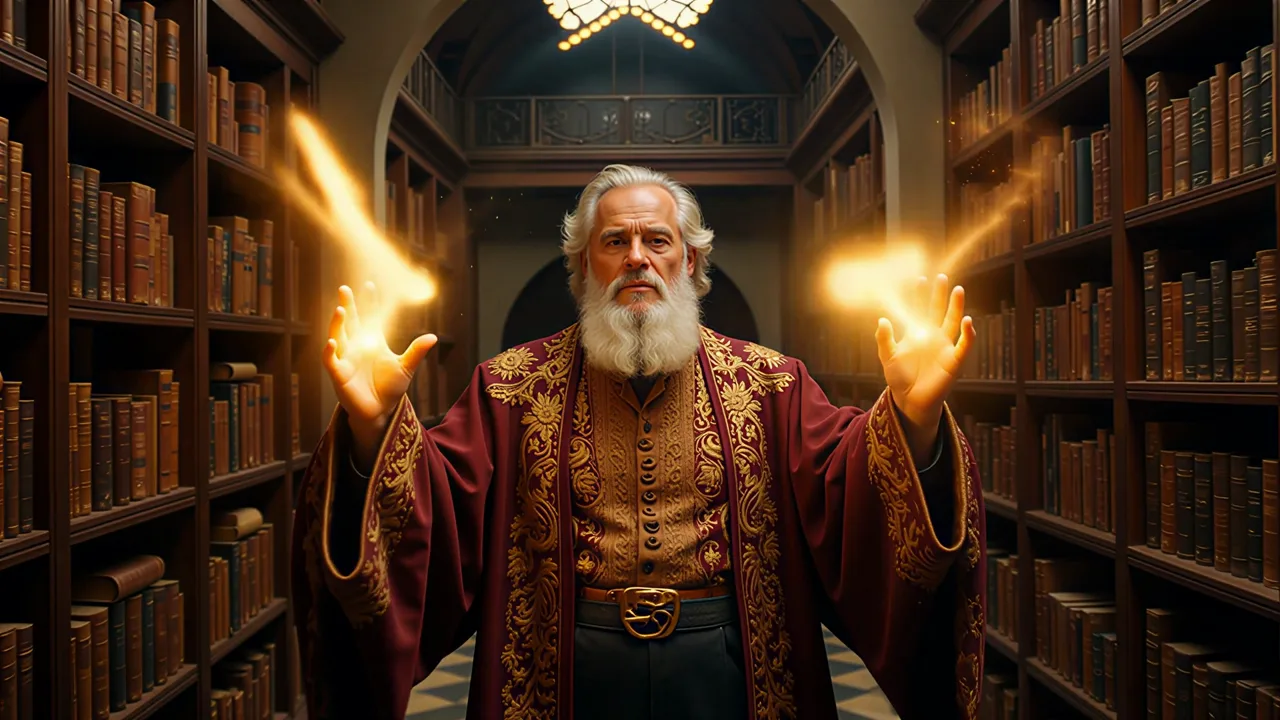
Change atmosphere and art direction

Use AI video editing to revise the background, lighting, weather, color treatment, or overall style while keeping the request easy to identify. One coherent direction usually works better than several unrelated transformations.

Replace or remove a specific object

Name the object, where it appears, and the desired replacement or removal. Clear spatial wording helps prompt-based video editing distinguish the target from nearby subjects, especially when the object moves or is partially hidden.

Preserve the parts that already work

Ask to maintain subject identity, composition, camera movement, or the original action when those details matter. Continuity can vary with difficult footage, but a preservation clause gives the model a clearer boundary for the requested edit.

How it works

How to edit video with AI using a text prompt

To edit videos with text prompts, follow three steps: add a source, write one editing instruction, and inspect the result beside the original.

  1. 01

    Add the source clip

    Choose a compatible clip from your device, or reuse an eligible completed result. Check its preview, duration, resolution, and aspect ratio before writing the instruction.

  2. 02

    Describe one visible change

    State what to replace, remove, restyle, or relight. Name the details that must remain stable, select a result resolution, and review the exact credit estimate before submitting.

  3. 03

    Review the edited result

    The new task opens in My Creations as soon as it receives a stable ID. The result page handles progress, refresh recovery, final playback, download, and the next editing or enhancement action.

Use cases and best results

When AI video editing works best

The AI video editor works best when the source already has the action and timing you need, but one visual decision needs revision. Keep timeline cutting, captions, and audio work in a conventional editor.

Good fits

Product and campaign revisions

Update a backdrop, surface, prop, packaging detail, or lighting direction after a campaign clip has already been assembled. A prompt-based video editor helps you test a new visual direction before committing to another production pass.

Social variations

AI video editing is useful for adapting a short clip to a different theme, season, or channel while keeping the same underlying action. Tie each version to one art-direction change so comparisons stay meaningful.

Scene cleanup

Remove or replace a distracting item when the target is easy to identify in the frame. Results are more predictable when the object is visible and does not cross complex foreground motion.

Creative restyling

Explore a cinematic, illustrated, editorial, or atmospheric treatment without discarding the original performance. State the desired look and preserve the action or camera behavior that defines the clip.

For better results

Make one primary edit

Start with one visible change. If you need several unrelated revisions, make them in separate generations so you can tell which instruction caused each result.

Name what must remain stable

Mention the person, product, framing, motion, or lighting elements that should stay unchanged. The source provides context, but explicit boundaries make the editing intent clearer.

Use a readable source

Clear subjects, consistent exposure, and limited motion blur make the target easier to follow. Very small details, fast occlusion, or heavy compression can reduce visual consistency.

Compare at the same moment

Review the original and edited clip around the requested change, then check the full sequence for identity, edges, and temporal consistency before using the result downstream.

Related AI video tools

Continue with another AI video tool

After AI video editing, extend the scene, increase its spatial resolution, or generate intermediate frames for smoother motion. Each related tool imports eligible results from My Creations without asking for the public media URL.

Editor pricing

See the exact credit cost before editing

The workspace calculates a quote after it verifies the source duration and selected resolution. You can review the required credits before you submit the edit.

Compare credit plans

Frequently asked questions

AI Video Editor FAQ

1

What does an AI video editor do?

This AI video editor interprets an editing instruction and applies it across an existing clip. It focuses on prompt-based changes such as revising a background, lighting, weather, object, or visual style, rather than timeline cutting, audio mixing, or subtitle work.

2

How can AI edit an existing video?

Use the online AI video editor to add a supported source clip or bring in a compatible result from your history. Write one clear instruction that describes the visible change and any details that must stay stable. Choose the edited clip's resolution, review the quoted credits, and start the task.

3

Which parts of a video can AI change?

A prompt-based video editor can change a background, atmosphere, lighting, weather, color treatment, object, material, or overall style. Feasibility depends on the source and instruction. A specific target and a coherent edit generally work better than many transformations in one prompt.

4

Will the original motion and subject stay the same?

The source guides timing and composition, but exact preservation cannot be guaranteed. Tell the model to keep the subject identity, camera movement, framing, and action when they matter. Clean footage and a narrow edit can improve continuity across frames.

5

What video length and resolution are supported?

The AI video editor accepts MP4 or MOV sources up to 50 MB and supports clips from 2 to 15 seconds. Available output settings are shown in the workspace. The server verifies the file and calculates credits from the trusted duration and selected resolution before submission.

6

Where can I find the edited result?

After submission, the tool takes you to My Creations with the new generation selected. That page shows processing and failure states, restores progress after a refresh, and provides the completed video, download control, and follow-up tools when the result is ready.

Edit existing video with AI

Use AI video editing for one precise visual revision while keeping the rest of the scene grounded in your source clip.

AI Video Editor Online – Edit Videos with Text Prompts