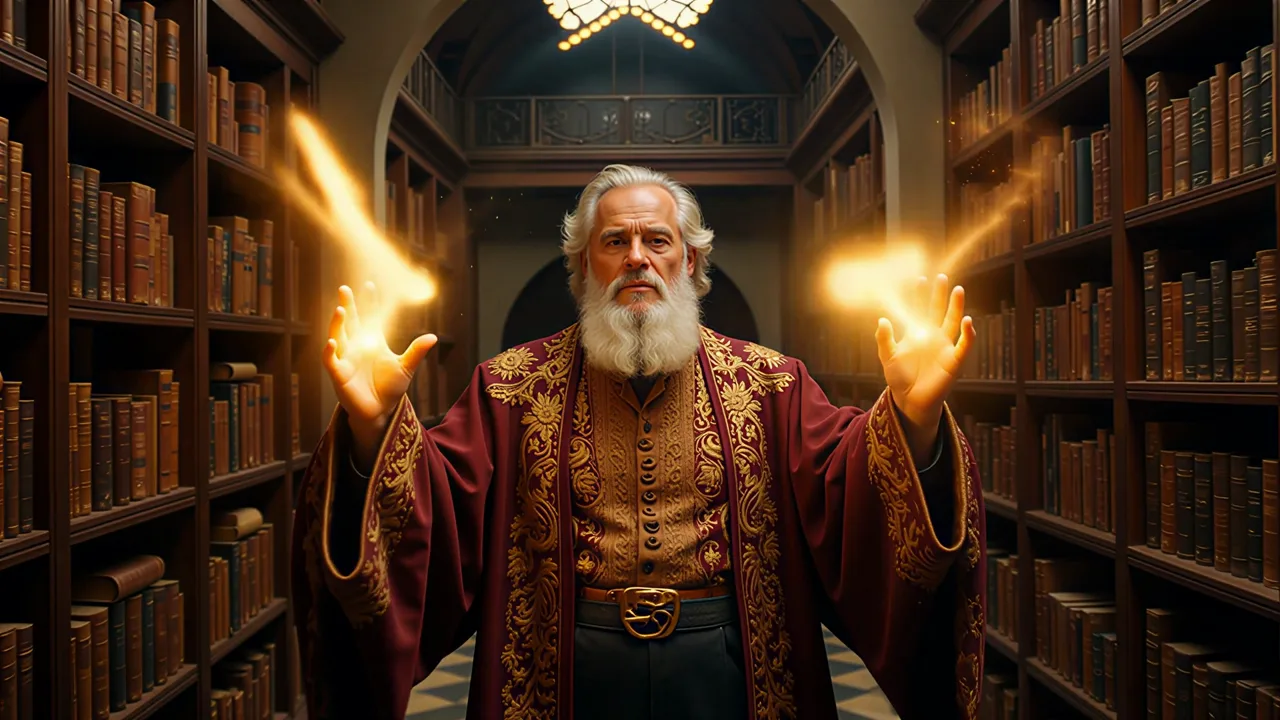
Continue from the last frame
The new segment starts from the source ending instead of restarting its opening. That final image gives the model clear context for subject position, camera angle, lighting, and ongoing movement.
Video continuation from the final frame
Use this AI video extender online to continue an unfinished action or camera move. Upload a source or import a compatible result, describe what happens next, and make the video longer with a newly generated segment.
Before and after
This before-and-after pair demonstrates video continuation rather than looping or slowing the source. The extended version begins from the closing visual state and generates a new segment that advances the action, camera path, or environment beyond the original ending.
Original
Extended
The continuation follows the final frame and moves the scene forward with a newly generated action rather than repeating existing frames.
Core capabilities
An AI video extender creates new visual content after the source ends. Your prompt directs the continuation while the final frame supplies the starting composition, subjects, and scene context.
The new segment starts from the source ending instead of restarting its opening. That final image gives the model clear context for subject position, camera angle, lighting, and ongoing movement.
Describe what the subject does next, where the camera moves, and how the environment changes. A short sequence of compatible events helps the AI video extender produce a clearer continuation than an overloaded story outline.
Set the duration of the newly generated segment within the supported range. A concise extension can complete a gesture, reveal a product, finish a camera move, or create room for a transition into the next shot.
Mention identity, wardrobe, movement direction, lighting, and camera behavior when continuity matters. The final frame anchors the handoff, while a focused prompt reduces conflicting instructions about what the scene should become.
How it works
Continue the video from its final frame, then guide one simple next action to make the clip longer.
Upload an MP4 or MOV file, or import an eligible completed result from My Creations. Preview the ending and identify the subject position, motion direction, and camera behavior that should continue.
Write what happens immediately after the final frame, choose the new segment length and resolution, and review the calculated credits. Avoid asking the AI video extender to jump between several unrelated locations in one short continuation.
After submission, the result center handles processing, refresh recovery, and final playback. Review the join and the new segment before downloading the result or opening another tool.
Use cases and best results
This video continuation tool works best when the source has a readable ending and the desired AI video extension follows naturally from what is already moving on screen.
Continue a walk, turn, reveal, gesture, or camera move that ends too abruptly. The AI video extender can give the motion enough time to resolve without copying the original frames into a visible loop.
Extend a product shot, landscape, or character beat so an edit has more space before the next clip. Describe the camera hold or movement you need instead of leaving the continuation entirely open-ended.
Add one logical event after the original ending, such as a door opening, a subject entering a new area, or the camera revealing a wider view. Keep the story step small enough for the selected duration.
Import an eligible video from My Creations and build the next segment without copying a public media URL. Each generation remains a separate result so you can return to earlier versions.
A clear subject and readable motion direction provide a stronger handoff. Heavy blur, a cut in progress, or a fully obscured subject can make the start of the continuation less predictable.
Use a near-term action rather than a long plot. State the subject, movement, camera, and atmosphere for the next few seconds so the model can produce one coherent extension.
Repeat key identity, clothing, product, lighting, or environment details when they must remain recognizable. Do not introduce several new subjects and a new location unless the transition is visible and intentional.
Review the handoff around the original final frame, then watch the full new segment for direction, subject identity, and camera consistency. A smooth first moment matters as much as the generated ending.
Related AI video tools
After the AI video extension, open the editor for a targeted visual change, use the upscaler for higher spatial resolution, or double the frame rate for smoother motion.
Extension pricing
The workspace calculates the quote from the verified source duration, selected continuation length, and output resolution. Review the required credits before extending the clip.
Frequently asked questions
An AI video extender generates a new segment after an existing clip. It uses the source ending as visual context and a text prompt to decide what happens next. The process creates new frames; it is different from looping, duplicating, slowing, or stretching the original footage.
The final visual state provides the handoff for composition, subject position, lighting, and motion direction. Your prompt then describes the immediate next action for the AI video extender. Continuity is model-generated rather than a guaranteed pixel-perfect match, so clear source footage and focused instructions are important.
Describe what happens directly after the clip ends. Include the subject action, camera movement, environment, and any details that must remain stable. Avoid retelling the whole source or combining several location and time changes in one short extension.
No. A loop returns to or repeats existing frames. When you extend a video with AI, the model generates a new continuation that advances the scene from the last frame. If you only need repeated playback, a conventional editor is simpler and more predictable.
The workspace accepts MP4 or MOV files up to 50 MB and source clips from 2 to 30 seconds. The server verifies trusted duration metadata before quoting or submitting. Available continuation lengths and resolutions appear directly in the workspace.
The tool opens the result center as soon as the request is saved. That page displays processing and failure states, recovers status after refresh, and provides playback, download, and follow-up actions for the full extended video.
Start from a clear final frame, describe the next action, and use the AI video extender online to create a purposeful new segment.